
Introduction
This is the operator's guide to the management console. The console is a web page served by the broker. It configures the running node. It does not replace the desktop window, which only starts the process and opens this page.
Open the console
- The broker must be running.
- Open
http://127.0.0.1:5763/orhttps://127.0.0.1:5764/. - Sign in.
From the desktop app, Open admin portal opens the HTTP address. The button is available while the broker is running, and also when Start reports that the ports are already in use.
Default ports:
| Listener | URL |
|---|---|
| Admin HTTP | http://127.0.0.1:5763/ |
| Admin HTTPS | https://127.0.0.1:5764/ |
| Health, not the console | http://127.0.0.1:5762/health |
HTTPS uses a generated certificate until CertificatePath is set. The browser warning is expected. Continue to the site, or install your own PEM certificate and key and restart the broker.
Sign in
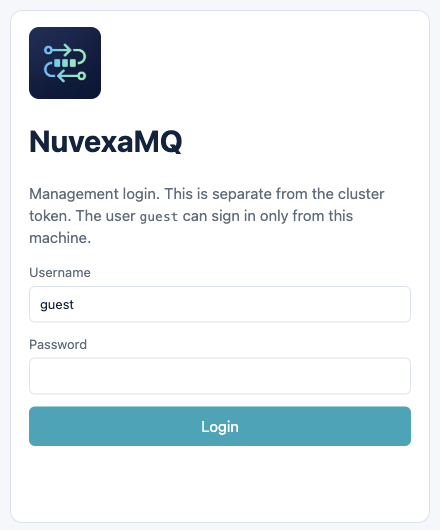
The seeded account is guest / guest on a new data directory. guest works only from this machine. From another host the login fails with "User 'guest' can only log in via localhost".
A user needs the tag administrator or management to open the console. A user without those tags can still connect on the data port if you grant permissions.
The session cookie lasts 8 hours. Use Log out when you are done on a shared machine. Closing the browser tab does not log you out.
If you change the guest password in the Admin page, the new password is what you type next time. The original guest password is written only when topology.json does not exist yet.
Pages
The bar under the header lists Overview, Connections, Channels, Exchanges, Queues, Streams, Admin, and Publish message. The console always edits virtual host /. Create another virtual host on the Admin page, then use the HTTP API or a client if you need to declare objects on that host. The forms on these pages send vhost: "/".
A red notice at the top is the error returned by the broker. Read it before submitting the form again.
Overview
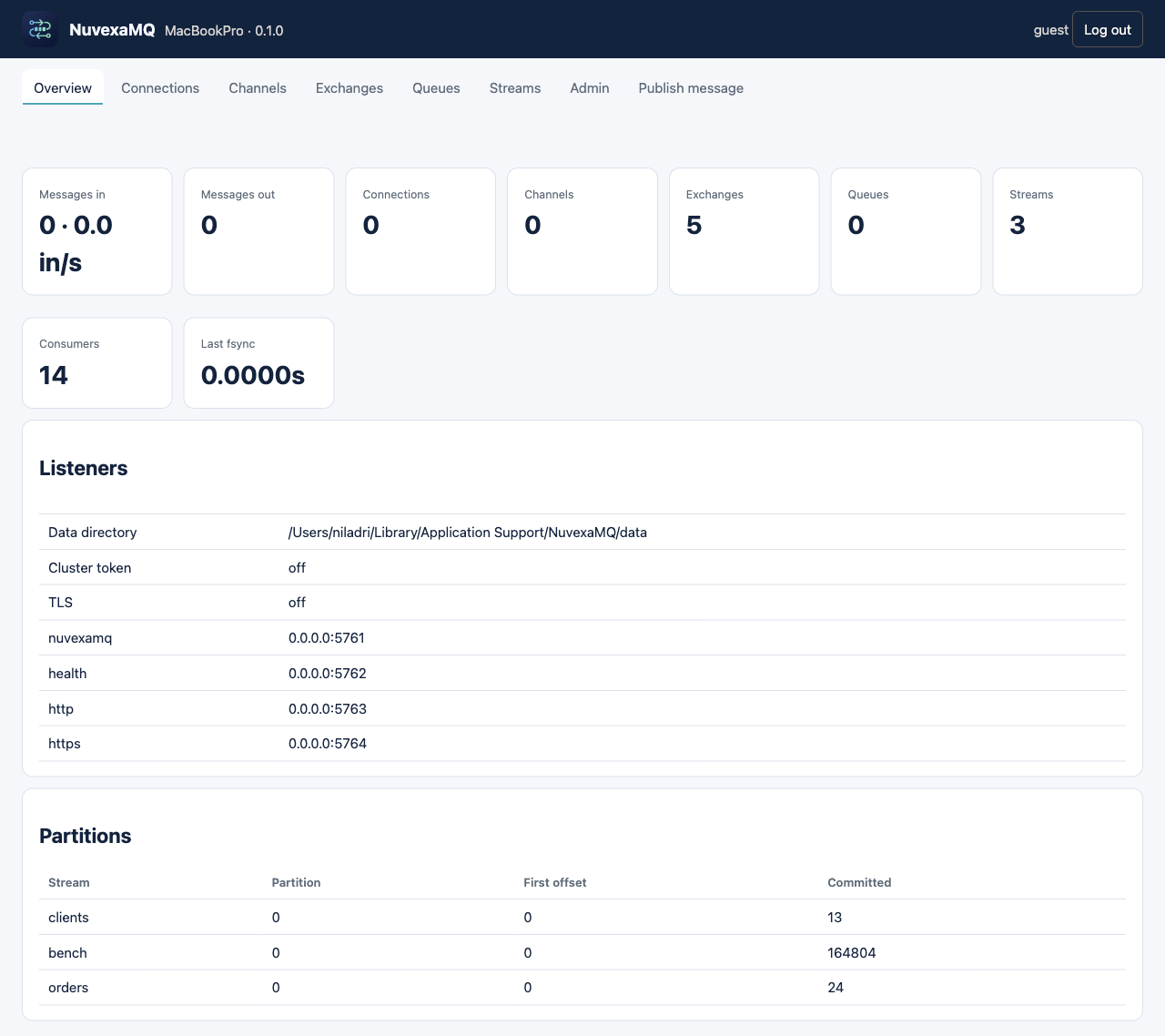
Shows the node name, broker version, data directory, whether a cluster token is required, whether the data port uses TLS, and counts of messages in, messages out, connections, exchanges, queues, streams, and consumers. The listener table is the four ports. The partition table is one row per stream partition, with the first offset still on disk and the committed offset. Use this page to confirm you are looking at the data directory you think you are. The desktop app and the system service do not share a data directory.
Connections
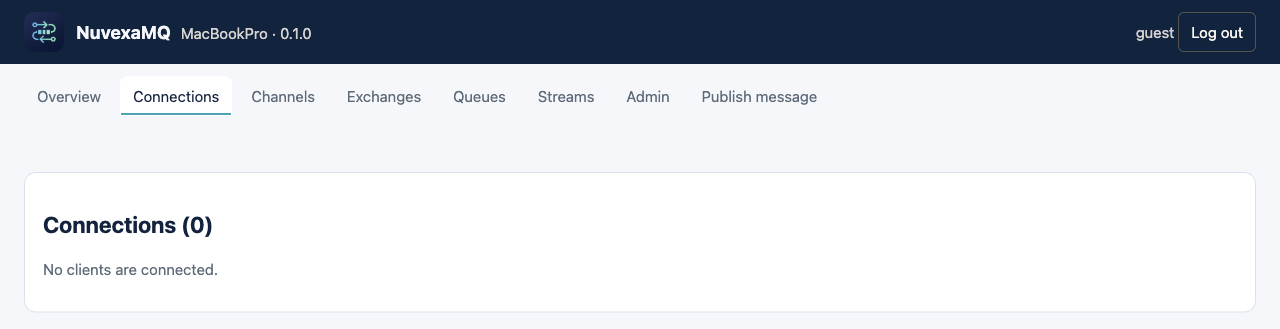
One row per open data-port session. The columns are Name, User, Peer, State, and Connected. A row appears after a successful Hello. It disappears when that TCP connection closes. An empty page means no client has a session open right now.
Channels
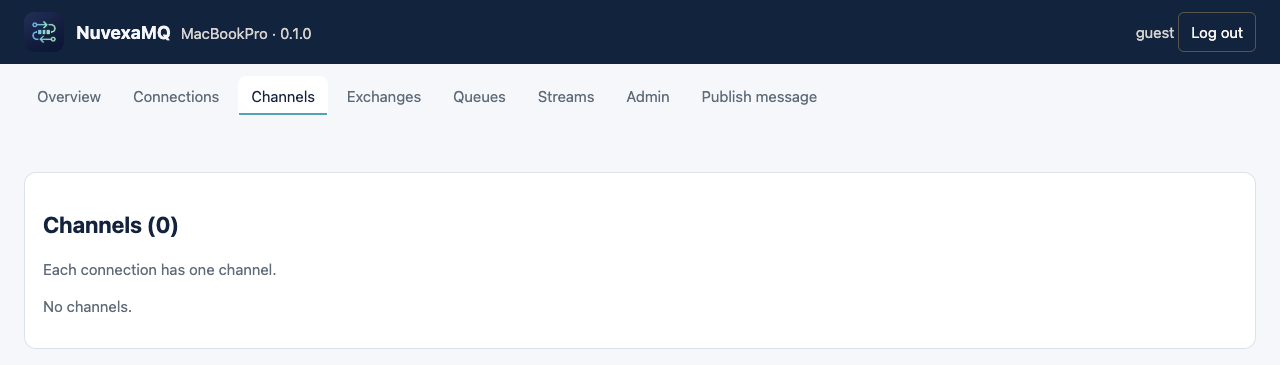
NuvexaMQ uses one channel per connection. When a client is connected, the columns are Channel, User, Virtual host, State, and Prefetch. The channel name is the connection id plus .1. Prefetch is shown as 1000, which is the default max in-flight acknowledgements for a consumer. You do not create channels here.
Exchanges
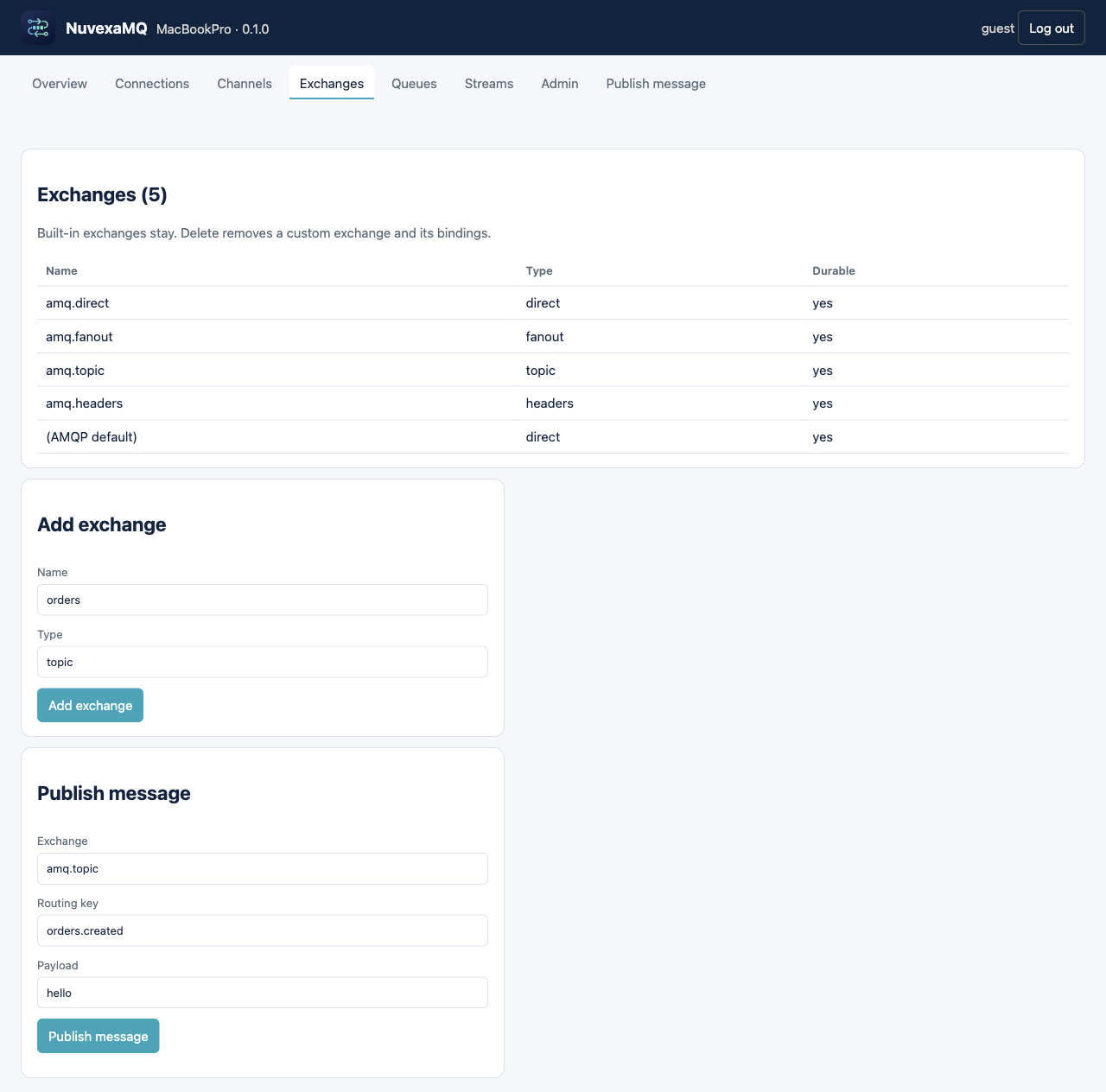
The table lists the name, type, and whether the exchange is durable. Built-in rows have no Delete button. A custom exchange gets a Delete button on its row.
Built-ins on every virtual host:
| Name in the table | Type | How to publish |
|---|---|---|
(AMQP default) | direct | Use an empty exchange name and the queue name as the routing key. There is nothing to bind. |
amq.direct | direct | Bind a queue with a routing key. A publish is delivered when the routing key is equal. |
amq.fanout | fanout | Every bound queue gets a copy. The routing key is ignored for matching. |
amq.topic | topic | The binding key is a pattern. * is one word. # is the rest. |
amq.headers | headers | The binding carries header arguments. See Bindings below. |
Add exchange
| Field | What to type |
|---|---|
| Name | 1–128 characters: letters, digits, ., _, -. Example: orders. |
| Type | direct, fanout, topic, or headers. |
The new exchange is durable. Adding the same name and type again does nothing. Adding the same name with a different type fails. Delete removes the exchange and its bindings. Messages already sitting in queues stay there.
Publish message, on this page, sends through an exchange:
| Field | Example |
|---|---|
| Exchange | amq.topic |
| Routing key | orders.created |
| Payload | The text body |
The publish fails when no queue is bound for that key. Declare the queue and the binding first.
Queues
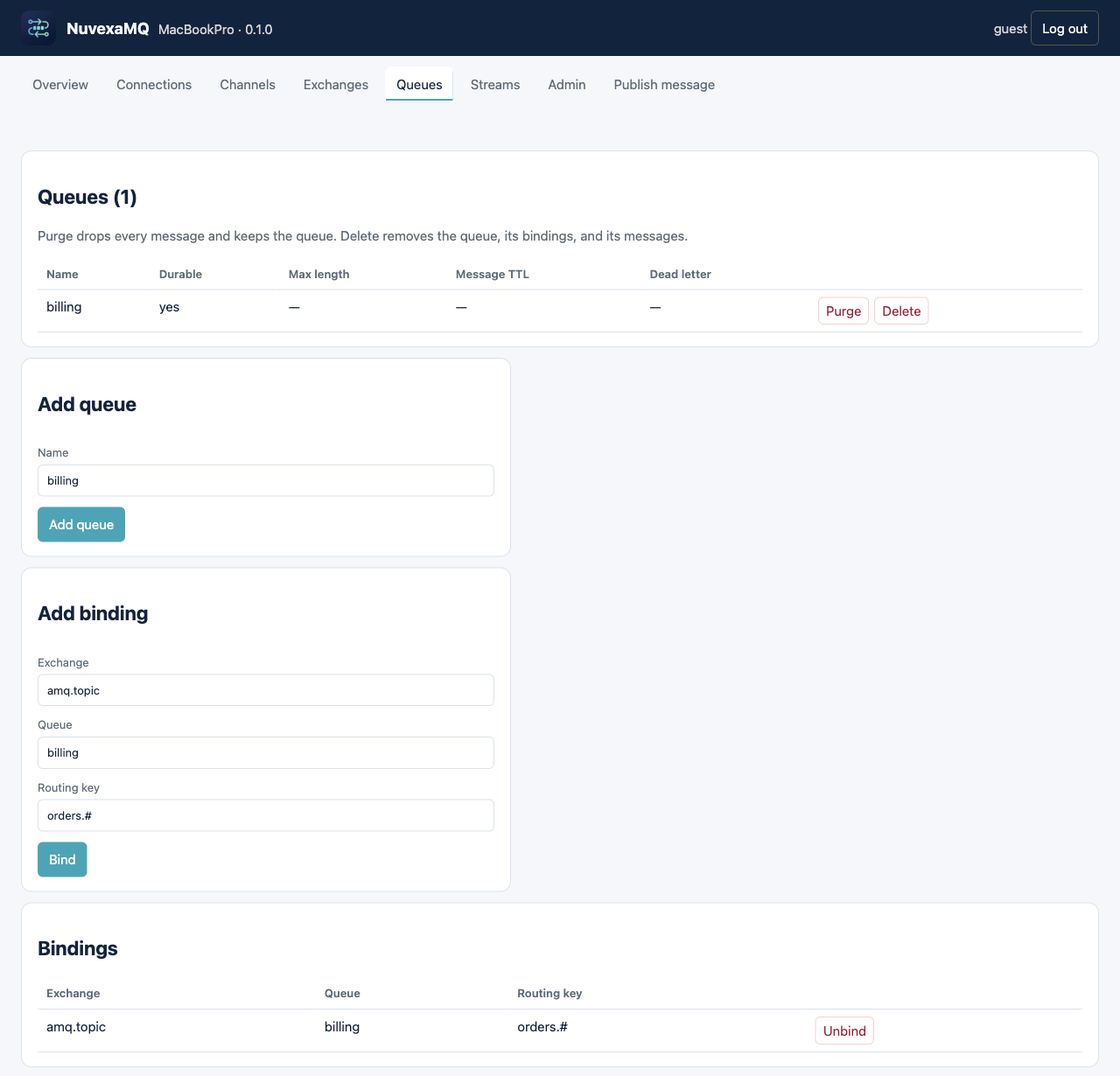
A queue stores messages for one consumer group. The table columns are Name, Durable, Max length, Message TTL, and Dead letter. A dash means that limit is not set. Each row has Purge and Delete.
The picture uses a queue named billing, bound to amq.topic with routing key orders.#. That is the layout in the worked example at the end of this guide.
Bindings, below the forms, lists every binding on this virtual host. Unbind removes that one row. The same exchange, queue, and routing key cannot be added twice.
Add queue asks for a name. The queue is durable. It has no TTL, no length cap, and no dead-letter exchange until you add a policy that matches the name, or until a client declares those options. The console form does not set TTL itself.
Purge drops the messages currently visible in that queue. The queue and its bindings remain.
Delete removes the queue, its bindings, and its messages.
Add binding
| Field | Meaning |
|---|---|
| Exchange | amq.direct, amq.fanout, amq.topic, amq.headers, or a custom name. Do not use the default exchange. |
| Queue | A queue that already exists |
| Routing key | For direct, the exact key publishers will send. For topic, a pattern such as orders.*. For fanout, any string; matching ignores it. |
Header bindings need arguments, which this form does not collect. Use a client or POST /api/bindings with arguments, for example { "format": "json", "x-match": "all" }. x-match all requires every argument. x-match any requires one. Arguments other than x-match are the headers that must appear on the message.
Get messages reads the queue log. It does not move consumer cursors.
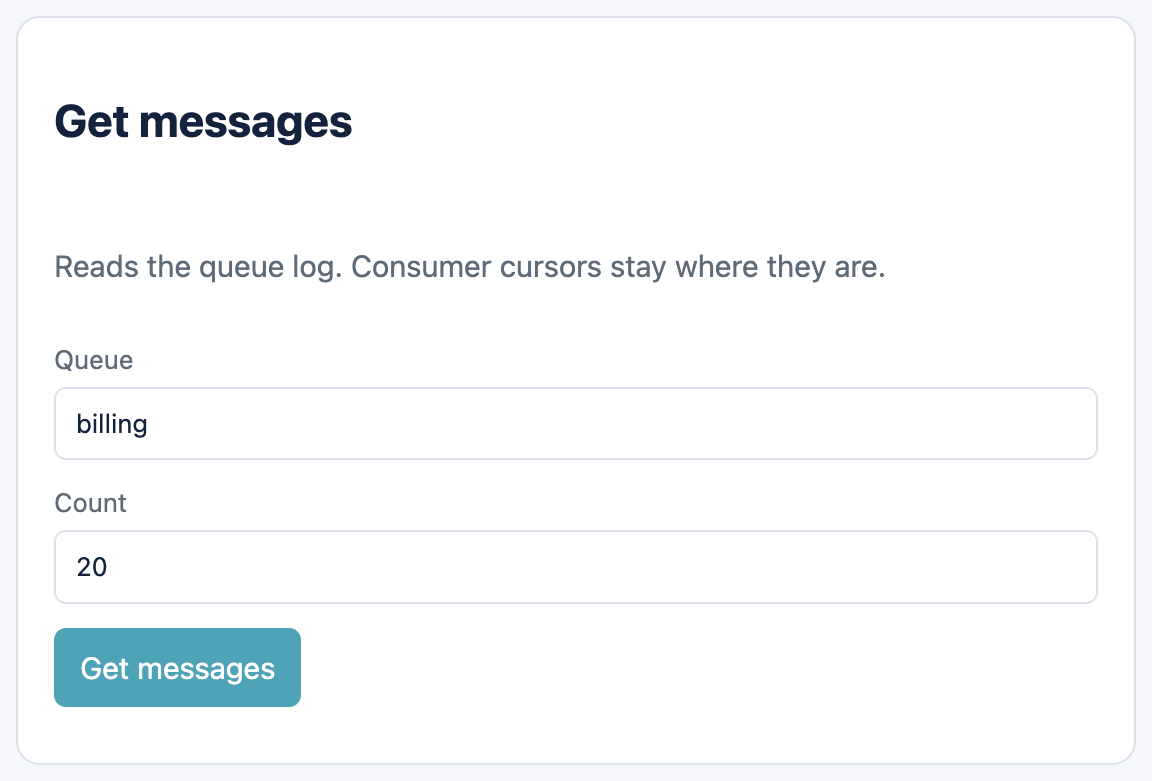
| Field | Meaning |
|---|---|
| Queue | A queue that already exists |
| Count | How many messages to return, from the tail of the log |
Streams
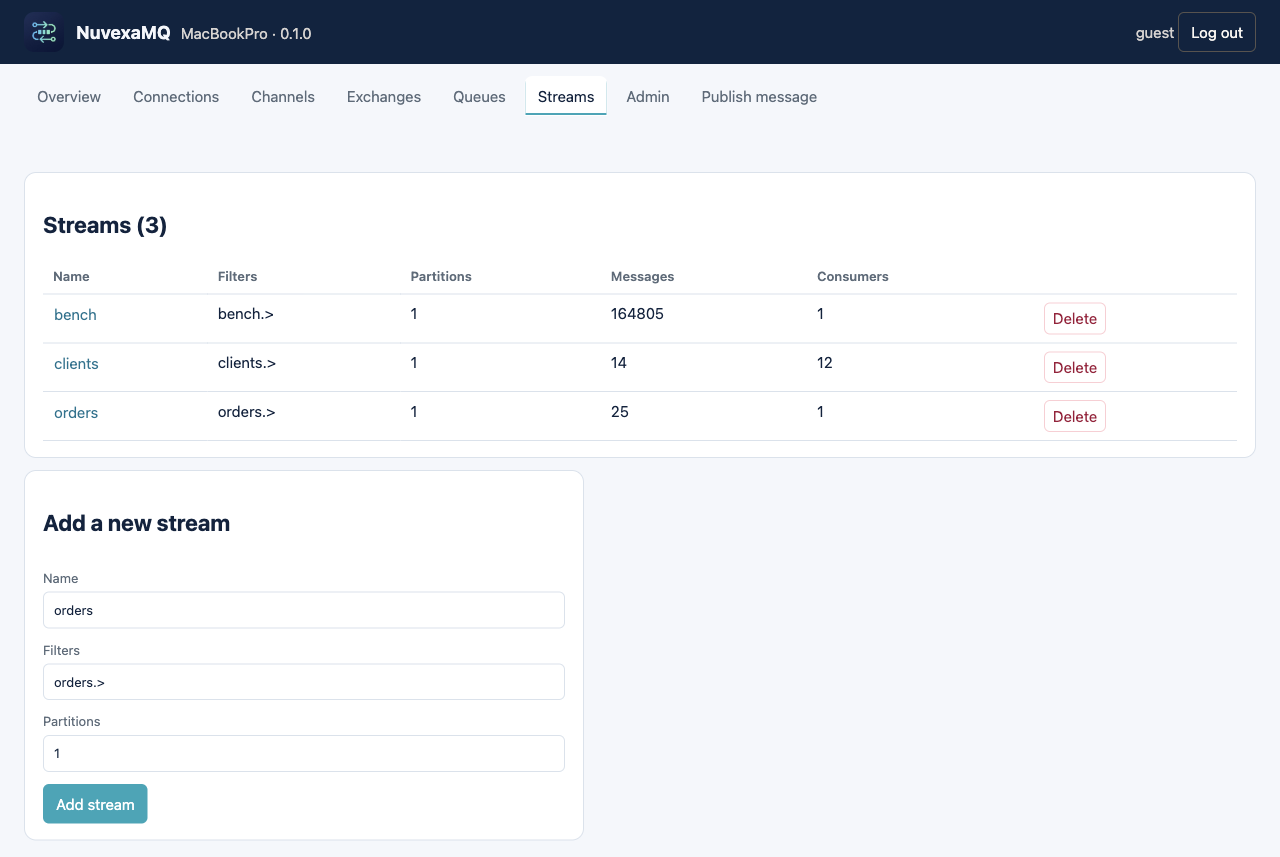
Streams are the replayable logs. Queues are not listed here. The name is a link. Delete removes that stream. $dlq is not offered a Delete button.
The table shows name, filters, partition count, message count, and consumer count. Click a name to open the stream.
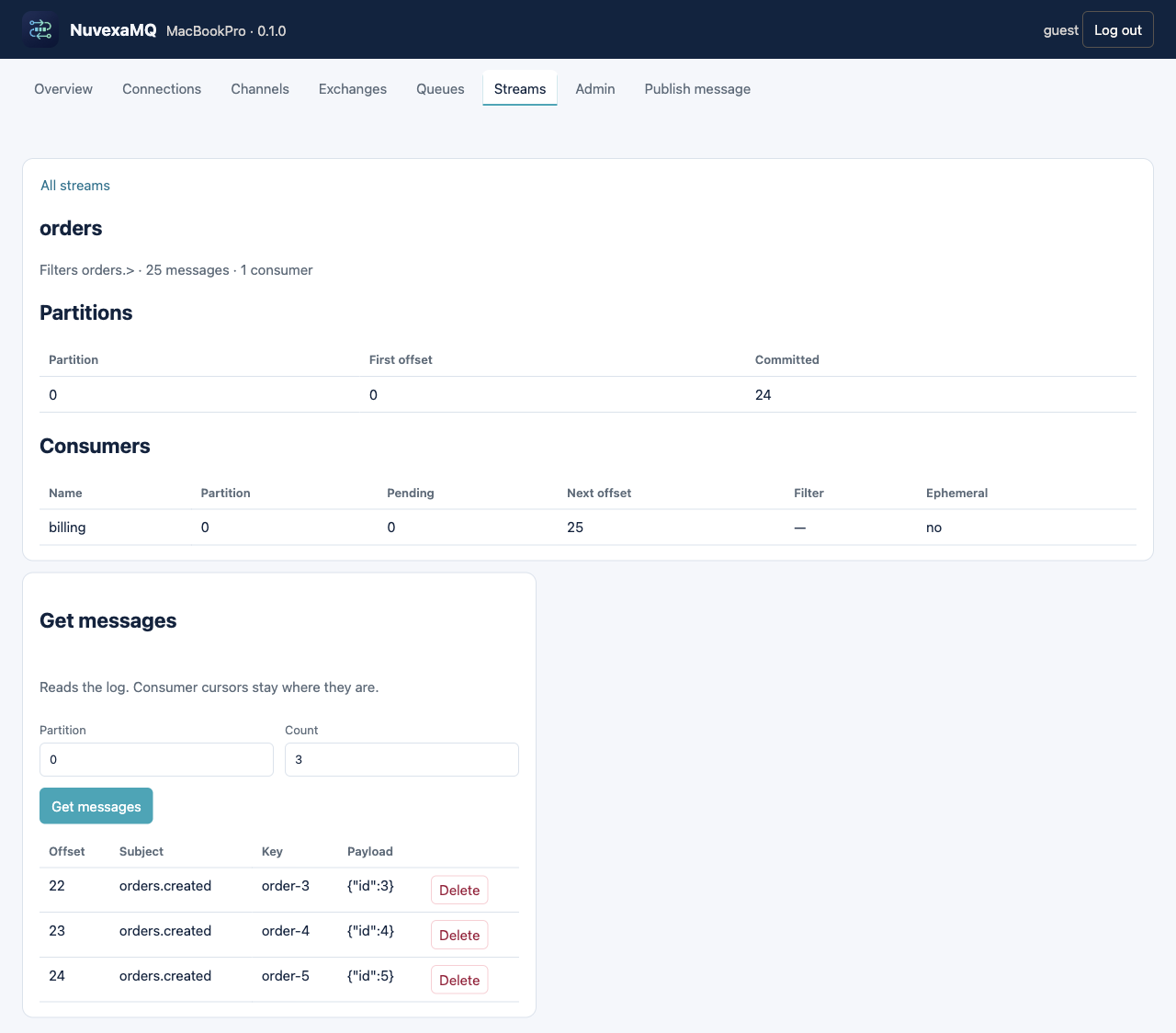
The stream page shows the filter, message count, and consumer count, then a partition table (partition, first offset, committed offset) and a consumer table (name, partition, pending, next offset, filter, ephemeral). Get messages reads the log and does not move those cursors. Partition chooses which log to read. Count is how many messages to return. Delete on a message row hides that offset. It does not renumber later offsets. All streams returns to the list.
Add a new stream
| Field | Example | Rule |
|---|---|---|
| Name | orders | Letters, digits, ., _, -. $dlq already exists and cannot be deleted. |
| Filters | orders.> | One or more filters, separated by spaces or commas. * is one word. > is the rest and must be last. |
| Partitions | 1 | 1–256. You cannot change this later. Use more than one only when publishers set a key and you want those keys spread out. |
Retention and a per-stream message size are not on this form. Set them with PUT /api/streams/{name} (maxAgeMs, maxBytes, maxMessageBytes) or from a client EnsureStream. Sending the same filters and partition count again updates retention. Sending a different partition count or a different filter list fails with a conflict.
Delete on the streams list removes the stream, its messages, and its consumers. Do not delete a stream that a running application still consumes.
Publish message
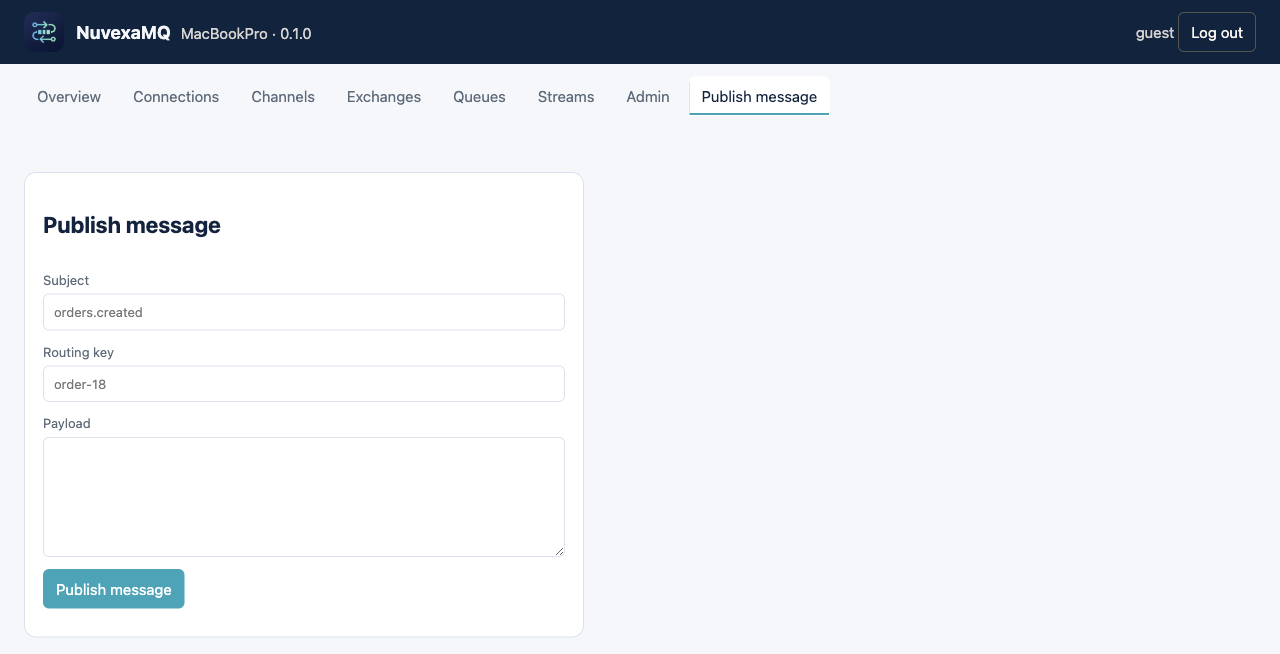
This page writes straight to streams, not through an exchange. The exchange publish form is on the Exchanges page.
| Field | Meaning |
|---|---|
| Subject | Must match a stream filter. orders.created matches a stream whose filter is orders.>. |
| Routing key | Optional partition key. The same key always selects the same partition. Leave it empty to round-robin. |
| Payload | UTF-8 text |
The result tells you which stream, partition, and offset stored the message. If the subject matches no stream, nothing is stored.
Admin
Four directories. All of them are stored in topology.json under the broker data directory.
Users
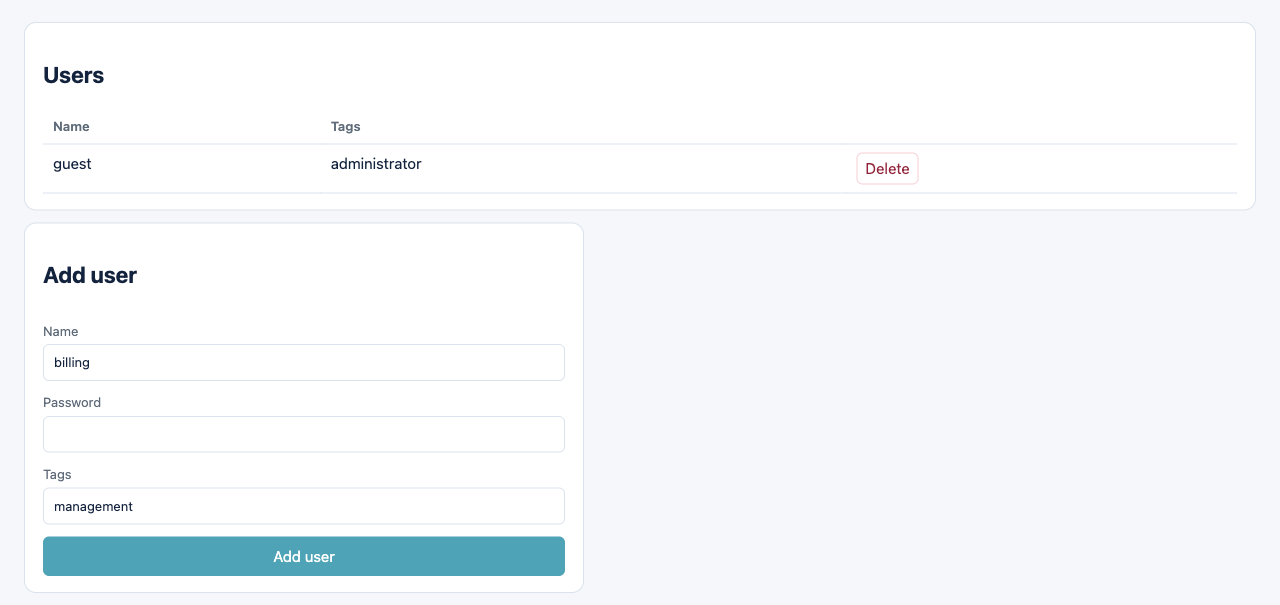
| Field | Meaning |
|---|---|
| Name | Login name |
| Password | Required for a new user. Leave the meaning of an empty password as "do not change" only when the user already exists; the form always sends what you type. |
| Tags | management to allow the console. administrator also allows the console. Separate tags with spaces or commas. The new user does not get data-port permission until you add it. |
The Add user button also grants that user configure, write, and read .* on virtual host /, which allows every resource name on /.
You cannot see the current password. Password hashes are not shown. Deleting a user removes their permissions. Do not delete the only administrator unless another tagged user can still sign in.
Permissions
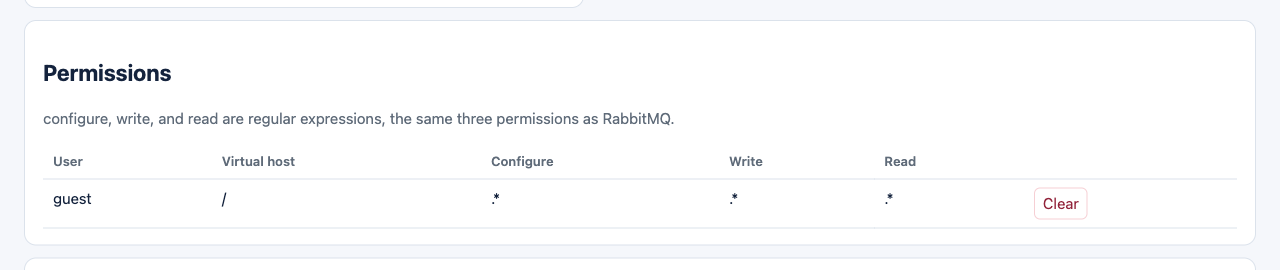
The table is user, virtual host, configure, write, and read. Each value is a regular expression matched against the resource name.
| Pattern | Allows |
|---|---|
.* | Every name |
^orders | Names that start with orders |
billing | The single name billing |
Configure covers declaring and deleting. Write covers publish. Read covers consume. Clearing a row removes that user from that virtual host. The user account remains.
The console does not have a separate "edit permission" form. Adding a user rewrites / to .*. For a tighter pattern, call PUT /api/permissions with { "user", "vhost", "configure", "write", "read" }.
Virtual hosts
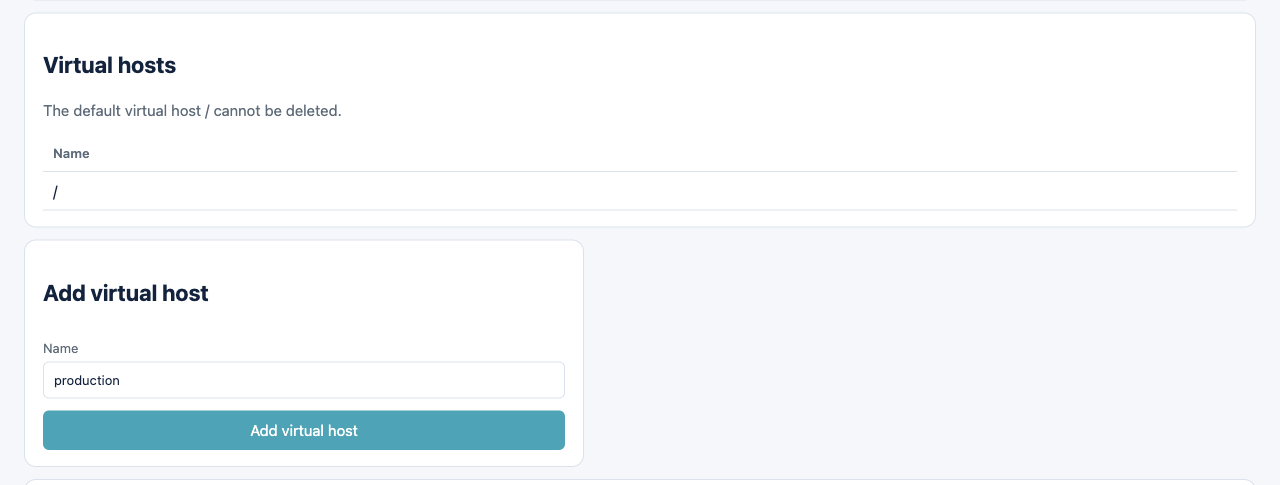
/ is the default and cannot be deleted. Add virtual host creates an empty host with the same built-in exchanges. It does not copy queues or users. After you add production, grant each user permission on that host. The other pages in this console continue to edit / only.
A virtual host name follows the same character rules as a queue name, except /.
Policies
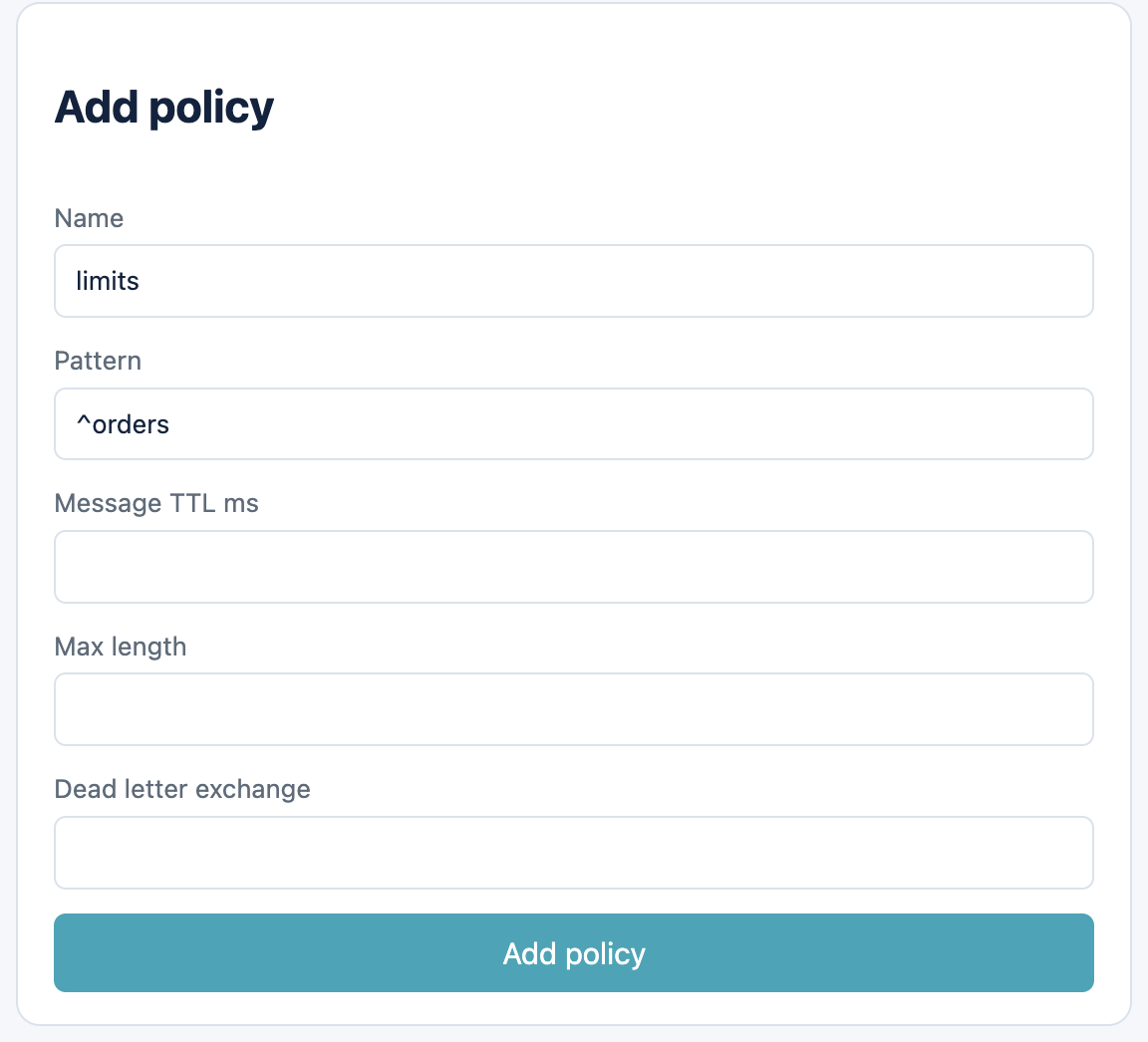
A policy changes TTL, max length, and dead-letter behavior for queue names that match a regular expression. It does not create queues. When none exist, the page says "No policies." A policy that exists has a Delete button on its row.
| Field | Example | Meaning |
|---|---|---|
| Name | limits | The policy's own name |
| Pattern | ^orders | Regular expression tested against the queue name |
| Message TTL ms | 60000 | Drop messages older than this. Empty keeps the queue's own TTL. |
| Max length | 100 | Keep at most this many messages. Empty keeps the queue's own limit. |
| Dead letter exchange | amq.direct | Where expired messages are published. Empty keeps the queue's own dead-letter exchange. |
Priority is 0 for policies created here. If two policies match, the higher priority wins. A policy does not override a field it left empty.
Delete removes the policy. Queues keep the messages they already have. The next publish uses the queue's own limits again.
A working layout
This is a complete setup for "publish orders.created, consume it from a queue".
- Sign in as
guest. - Queues → Add queue. Name:
billing. - Queues → Add binding. Exchange
amq.topic, queuebilling, routing keyorders.*. - Exchanges → Publish message. Exchange
amq.topic, routing keyorders.created, payloadhello. - A client that consumes queue
billingreceiveshello.
For a replayable log instead of a queue:
- Streams → Add a new stream. Name
orders, filtersorders.>, partitions1. - Publish message. Subject
orders.created, payloadhello. - A client ensures a consumer on stream
ordersand fetches.
Desktop window
The desktop is not the admin panel. It starts a broker in the user data directory, or it detects that a broker already has the ports.
| Control | While stopped | While running or in use |
|---|---|---|
| Start | Enabled | Disabled |
| Stop | Disabled | Enabled. Stops the broker this window started, or the system service that already holds the ports. |
| Open admin portal | Disabled | Enabled |
| Broker, health, admin HTTP, admin HTTPS | Editable. All four must differ, from 1 to 65535. | Locked |
| Data directory | Editable | Locked |
| Enable logging | Always editable | Always editable |
| Verbose console logs | Editable | Locked |
| Logs path and Browse | Editable | Locked |
Verbose and the log folder apply to the desktop's own broker. The system service writes /Library/Logs/NuvexaMQ/nuvexamq.log on macOS, not the desktop log folder.
What the console will not do
- It will not edit virtual hosts other than
/from the forms. Create the host here, then use a client or the HTTP API. - It will not set queue TTL on the Add queue form. Use a policy or a client.
- It will not create header-exchange arguments. Use the API or a client.
- It will not show password hashes or message payloads that are not valid UTF-8 as text. Binary payloads are returned as Base64 by the messages API.
- It will not cluster, federate, or import an AMQP broker.